
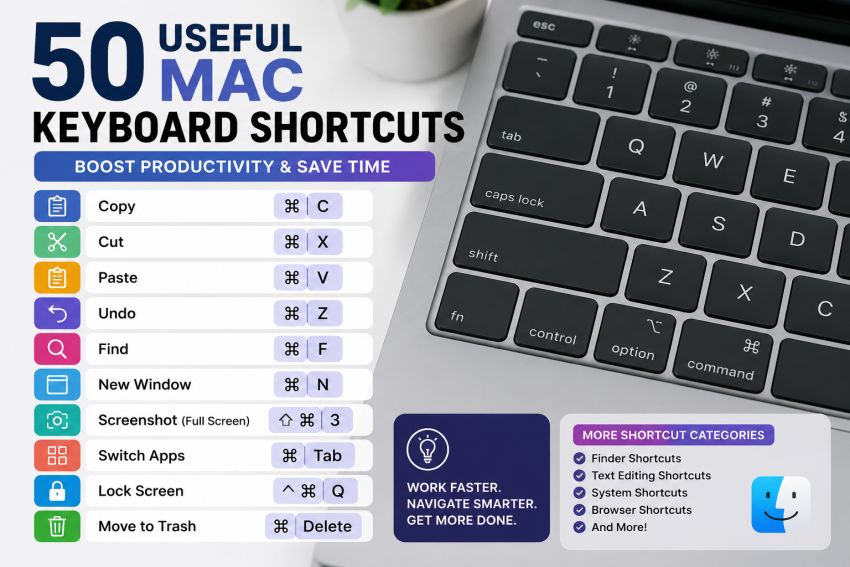
Mac computers are known for their smooth performance, user-friendly design, and powerful features. One of the easiest ways to improve your productivity on a Mac is by learning keyboard shortcuts. Instead of navigating through menus or using a mouse for every task, you can complete actions with just a few key combinations.
Whether you are a beginner or an experienced Mac user, learning these 50 keyboard shortcuts can significantly improve your productivity. Resources such as BrumeBlog com often highlight practical technology tips that help users get more from their devices and software.
Why Learn Mac Keyboard Shortcuts?
Keyboard shortcuts help you:
- Work faster
- Improve productivity
- Reduce repetitive mouse movements
- Navigate macOS more efficiently
- Complete tasks with fewer clicks
The more shortcuts you learn, the more comfortable and efficient your Mac experience becomes.
Basic Editing Shortcuts
These are some of the most commonly used shortcuts on macOS.
| Shortcut | Function |
|---|---|
| Command + C | Copy |
| Command + X | Cut |
| Command + V | Paste |
| Command + Z | Undo |
| Shift + Command + Z | Redo |
| Command + A | Select All |
| Command + F | Find |
| Command + G | Find Next |
| Shift + Command + G | Find Previous |
| Command + P |
File Management Shortcuts
These shortcuts help manage files and documents.
| Shortcut | Function |
| Command + N | New Document or Window |
| Command + O | Open File |
| Command + S | Save |
| Shift + Command + S | Save As (in some apps) |
| Command + W | Close Window |
| Option + Command + W | Close All Windows |
| Command + Q | Quit Application |
| Option + Command + Esc | Force Quit |
| Command + Delete | Move Item to Trash |
| Shift + Command + Delete | Empty Trash |
Screenshot Shortcuts
Taking screenshots on a Mac is incredibly easy.
| Shortcut | Function |
| Shift + Command + 3 | Capture Entire Screen |
| Shift + Command + 4 | Capture Selected Area |
| Shift + Command + 5 | Screenshot Toolbar |
| Shift + Command + 6 | Touch Bar Screenshot |
| Control + Shift + Command + 4 | Copy Screenshot to Clipboard |
Browser and Navigation Shortcuts
These shortcuts improve web browsing and navigation.
| Shortcut | Function |
| Command + T | New Tab |
| Command + Shift + T | Reopen Closed Tab |
| Command + Tab | Switch Applications |
| Command + L | Highlight Address Bar |
| Command + R | Refresh Page |
| Command + Plus (+) | Zoom In |
| Command + Minus (-) | Zoom Out |
| Command + 0 | Reset Zoom |
| Command + Left Arrow | Go to Beginning of Line |
| Command + Right Arrow | Go to End of Line |
Text Editing Shortcuts
Perfect for writers, students, and office users.
| Shortcut | Function |
| Option + Left Arrow | Move One Word Left |
| Option + Right Arrow | Move One Word Right |
| Command + Up Arrow | Top of Document |
| Command + Down Arrow | Bottom of Document |
| Shift + Arrow Keys | Select Text |
| Option + Delete | Delete Previous Word |
| Fn + Delete | Forward Delete |
| Command + B | Bold Text |
| Command + I | Italic Text |
| Command + U | Underline Text |
Finder Shortcuts
Finder is the file management system in macOS.
| Shortcut | Function |
| Command + Shift + N | New Folder |
| Command + 1 | Icon View |
| Command + 2 | List View |
| Command + 3 | Column View |
| Command + 4 | Gallery View |
| Space Bar | Quick Look Preview |
| Command + D | Duplicate File |
| Command + I | Get Info |
| Command + Shift + C | Computer View |
| Command + Shift + H | Home Folder |
System Shortcuts
These shortcuts help manage macOS features.
| Shortcut | Function |
| Command + Space | Open Spotlight Search |
| Control + Command + Q | Lock Screen |
| Option + Brightness Up | Open Display Settings |
| Option + Volume Up | Open Sound Settings |
| Control + Up Arrow | Mission Control |
| Control + Down Arrow | App Windows |
| Control + Left Arrow | Previous Desktop |
| Control + Right Arrow | Next Desktop |
| Command + Comma (,) | App Preferences |
| Fn + Globe Key | Emoji and Symbols |
Tips for Remembering Mac Shortcuts
Learning 50 shortcuts may seem overwhelming at first, but you do not need to memorize them all at once.
Here are a few simple tips:
Start With Daily Tasks
Focus on shortcuts you use every day, such as:
- Copy
- Paste
- Save
- Undo
- Find
These provide immediate benefits.
Practice Consistently
Try using shortcuts instead of menu options whenever possible. Repetition helps build muscle memory.
Keep a Cheat Sheet
Print a list of your favorite shortcuts and keep it near your workspace until they become second nature.
Learn One Category at a Time
Instead of learning all 50 shortcuts in a single day, start with one category:
- Editing
- Browsing
- Screenshots
- Finder
- System controls
This makes learning much easier.
Benefits of Using Mac Keyboard Shortcuts
Using useful Mac keyboard shortcuts regularly can dramatically improve your workflow.
Some major benefits include:
Increased Productivity
Tasks that normally take multiple clicks can often be completed with a single shortcut.
Less Hand Movement
Reducing the need to switch between keyboard and mouse can improve efficiency.
Better Focus
Shortcuts allow you to stay focused on your work instead of navigating through menus.
Faster Navigation
You can move through documents, applications, and files much more quickly.
Common Mistakes Beginners Make
When learning shortcuts, beginners often:
- Try to memorize too many shortcuts at once
- Forget to practice regularly
- Continue using menus instead of shortcuts
- Ignore Finder and system shortcuts
The key is gradual learning and consistent use.
Conclusion
Learning useful Mac keyboard shortcuts is one of the simplest ways to become more productive on your Mac. These shortcuts help you complete tasks faster, navigate more efficiently, and reduce repetitive actions throughout your day.
Whether you are writing documents, browsing the web, managing files, taking screenshots, or switching between applications, these 50 shortcuts can significantly improve your workflow.
Start by mastering the shortcuts you use most often, then gradually expand your knowledge. Over time, these commands will become second nature, helping you get more done with less effort.
Frequently Asked Questions (FAQs)
What is the most useful Mac keyboard shortcut?
Many users consider Command + C, Command + V, Command + Z, and Command + Space among the most useful everyday shortcuts.
How do I learn Mac keyboard shortcuts quickly?
Practice a few shortcuts daily and focus on the ones you use most often. Consistent repetition is the fastest way to learn.
Are Mac keyboard shortcuts different from Windows?
Yes. Mac uses the Command key for many actions that use the Ctrl key on Windows.
Can keyboard shortcuts improve productivity?
Absolutely. Shortcuts reduce the number of clicks required for common tasks and help users work more efficiently.
Where can I find Mac keyboard shortcut settings?
You can view and customize many shortcuts by going to System Settings > Keyboard > Keyboard Shortcuts.

BrumeBlog.com explores future technology, AI, cybersecurity, digital innovation, gadgets, and emerging trends, delivering insightful content that helps readers stay ahead.